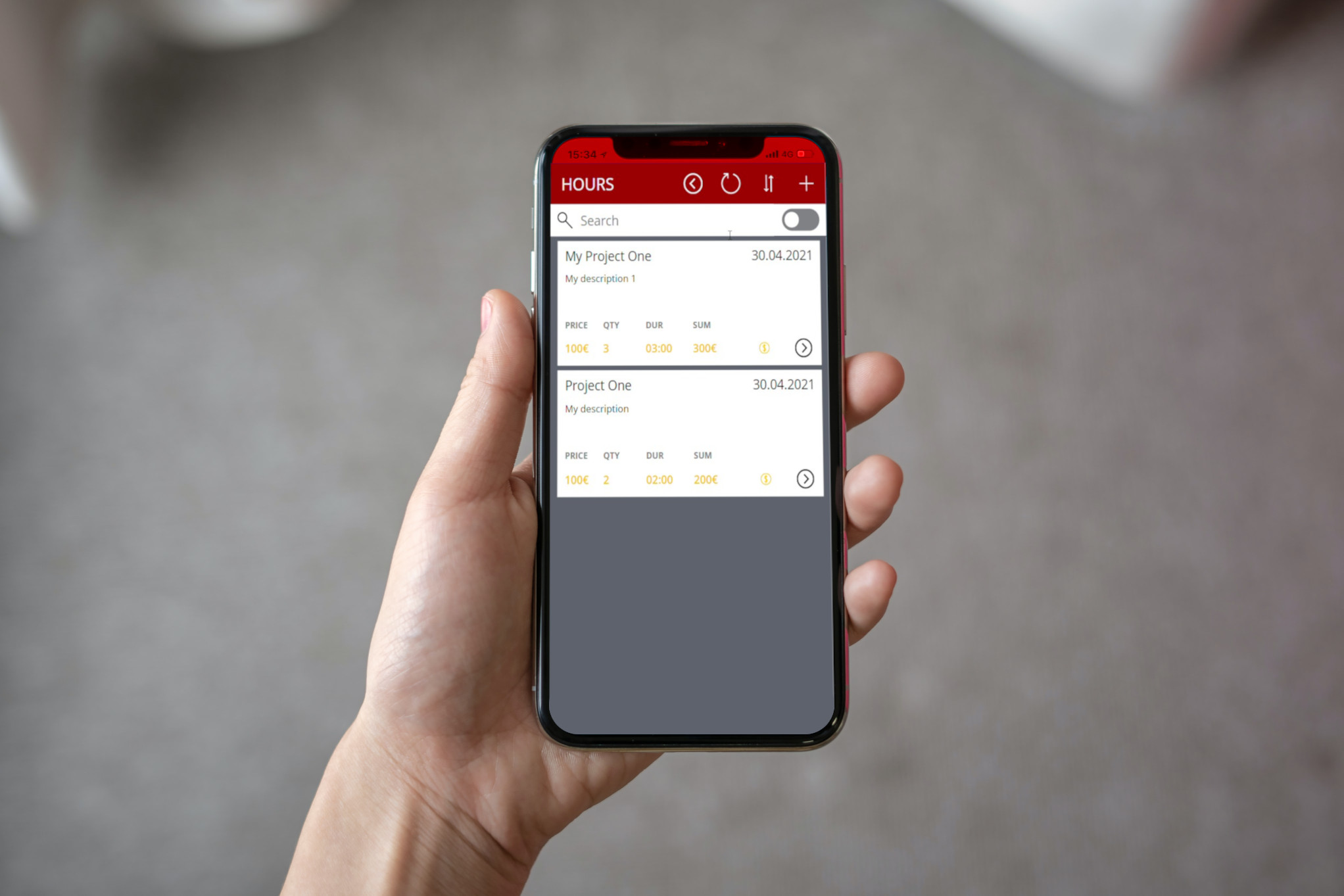

PowerApps TimeTracking for SevDesk Part 2
This article continues with technical details about my first part. You have full access to the source code inside Office 365 PowerApps.
Custom connector
In general in PowerApps you need a data source for every app. This can be done by custom entities or with connectors. O365 brings you a lot of default connectors, if you have a third party system like SevDesk, you can create your own connector. Connectors can be created in our solution folder (this solution helps just to package our app and the connector) or directly within Data > Custom Connectors.
You start with title, a description and your host url. To make it easier you can add the api/v1 to your basic url. It is attached to our host url.

On next step you choose your security option. SevDesk supports API-Key. You can get an overview here: hilfe.sevdesk.de/knowledge/sevdesk-rest-full-api
We choose the option API-Key and token for query. By running your connector, you are asked for your key. It is stored in a save connection and the connector will append this as hidden parameter to every request.

Your definition hold your request actions. I created the actions from official swagger documentation (app.swaggerhub.com/apis/sevDesk) first with postman. Afterwards i imported the statements from postman into the connector.
You should work with parameters and also add a sample response. PowerApps automatically adds these parameters to your preview and you can work with later.

A new smart option is to use the Swagger-Editor, you can enable this on top. Every parameter and response is visible here. Here a small sample:
1/ContactTimeTracking/Query/getAggregatedContactData:2 get:3 responses:4 default:5 description: default6 schema:7 type: object8 properties:9 fromApiCache: {type: boolean, description: fromApiCache}10 objects:11 type: object12 properties:13 objects:14 type: array15 items:16 type: object17 properties:18 contact:19 type: object20 properties:21 objectName: {type: string, description: objectName}22 id: {type: string, description: id}23 name: {type: string, description: name}24 description: contact25 date: {type: string, description: date}26 duration: {type: string, description: duration}27 quantity: {type: string, description: quantity}28 trackings: {type: integer, format: int32, description: trackings}29 used_trackings: {type: integer, format: int32, description: used_trackings}30 sumGross: {type: string, description: sumGross}31 sumTax: {type: string, description: sumTax}32 sumNet: {type: string, description: sumNet}33 description: objects34 total: {type: integer, format: int32, description: total}35 emptyState: {type: boolean, description: emptyState}36 description: objects37 summary: TimeTrackingAggregatedContactData38 parameters:39 - {name: embed, in: query, required: false, type: string, default: 'contact,contact.parent,part'}40 - {name: limit, in: query, required: false, type: integer, default: 50}41 - {name: offset, in: query, required: false, type: integer, default: 0}42 operationId: TimeTrackingAggregatedContactData43 description: TimeTrackingAggregatedContactData
The last step is to create your connector, create a connection and test your operation.

Post requests application/x-www-form-urlencoded
Unfortunately SevDesk does not support post JSON requests for every type of request. We have to make a workaround. You have to create default request with a single body parameter. The body string we will build in our app and we do a post request with this content.
1/ContactTimeTracking/Factory/saveTrackedEvents:2 post:3 summary: Create a time tracking4 description: Create a time tracking5 operationId: CreateATimeTracking6 consumes: [application/x-www-form-urlencoded]7 produces: [application/json]8 parameters:9 - name: body10 in: body11 required: false12 schema: {type: string, title: bodycontent}13 responses:
Further more you need to add a special policy. It makes sure, that your request header is Content-Type:application/x-www-form-urlencoded

SevDesk swagger definitions
Here you can find two swagger definitions for SevDesk:
- SevDesk-TimeTracking-Connector.swagger.json
- TimeTracking.postman_collection.json-Swagger20.json taken from SevDesk Forum
Canvas App
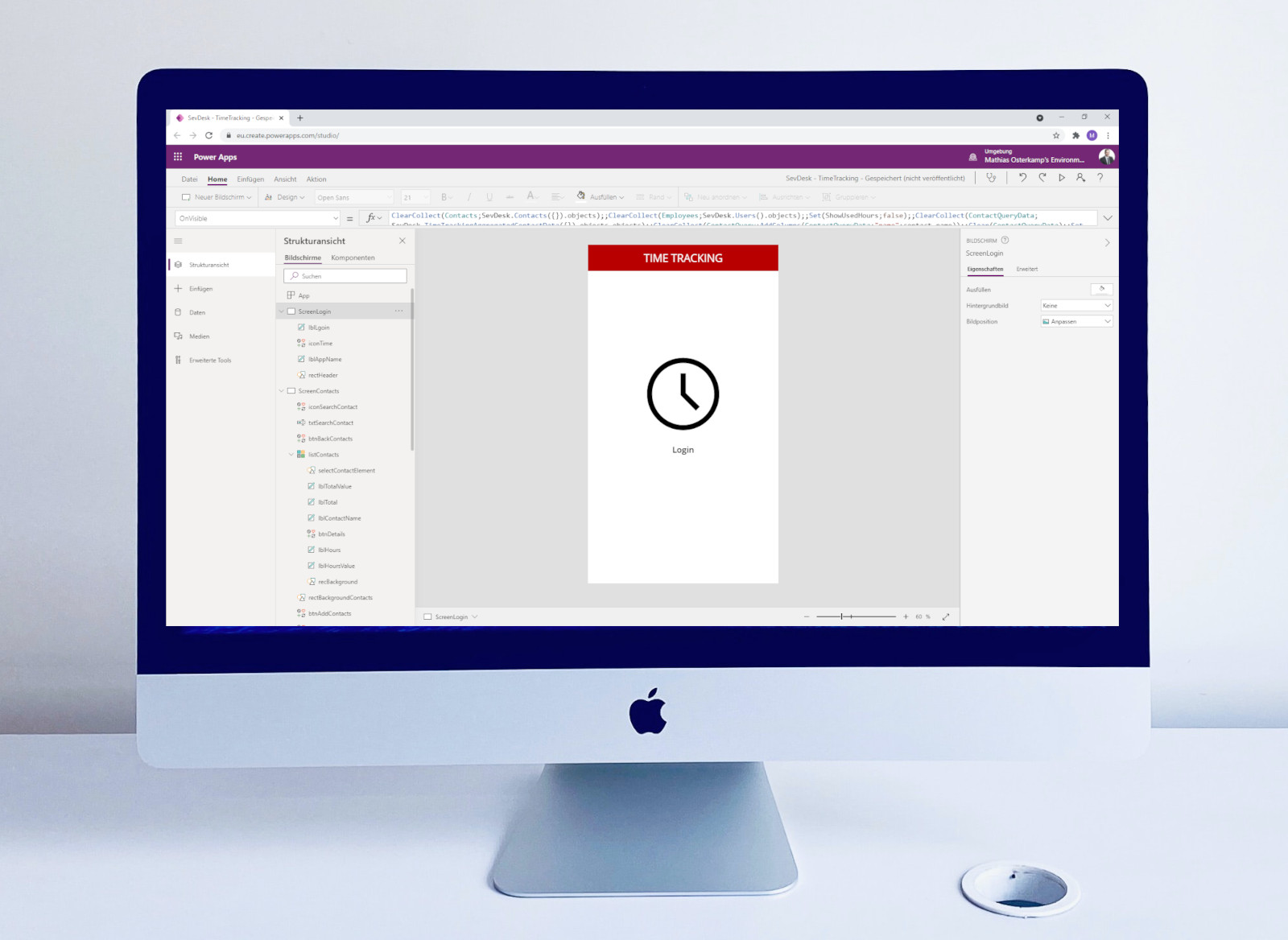
The canvas app is straight forward PowerApps default stuff. We define the data loading (in our case) on the OnVisible of the login/start screen. We just have to add our connector at the data pane and can access it from code. For example SevDesk.Contacts({}).objects, it queries the connector and write the result (with ClearCollect) into a separate collection.

You can have a look at your collections (after data are loaded)

You will also see on the ScreenForm > btnSave, our application/x-www-form-urlencoded encoded request. It is a little bit ugly but simple creates a content string with all needed parameters.
1Set(HttpMessage;Concatenate("trackings%5B0%5D%5Bcreate%5D=";If(isnew;"true";"null");"&trackings%5B0%5D%5Bupdate%5D=";If(isnew;"null";"true");"&trackings%5B0%5D%5BsevClient%5D=null&trackings%5B0%5D%5Bcontact%5D%5Bid%5D=";cbContacts.Selected.id;"&trackings%5B0%5D%5Bcontact%5D%5BobjectName%5D=Contact";If(IsBlank(cbProjects.Selected.id);"&trackings%5B0%5D%5Bproject%5D=null";Concatenate("&trackings%5B0%5D%5Bproject%5D%5Bid%5D=";cbProjects.Selected.id;"&trackings%5B0%5D%5Bproject%5D%5BobjectName%5D=Project"));"&trackings%5B0%5D%5Bpart%5D%5Bid%5D=";cbParts.Selected.id;"&trackings%5B0%5D%5Bpart%5D%5BobjectName%5D=Part&trackings%5B0%5D%5Bemployee%5D%5Bid%5D=";cbEmployee.Selected.id;"&trackings%5B0%5D%5Bemployee%5D%5BobjectName%5D=SevUser&trackings%5B0%5D%5Btracking%5D=null&trackings%5B0%5D%5BinvoicePos%5D=null&trackings%5B0%5D%5Bdate%5D=";Text(DateDiff(Date(1970;1;1);dtDate.SelectedDate;Milliseconds)/1000);"&trackings%5B0%5D%5Bstatus%5D=null&trackings%5B0%5D%5Bbillable%5D=";Text(cbBillable.Value);"&trackings%5B0%5D%5Bprecision%5D=PT1M&trackings%5B0%5D%5Bquantity%5D=null&trackings%5B0%5D%5BtaxRate%5D=19&trackings%5B0%5D%5BhourlyGross%5D=";Substitute(Text(Value(txtNetHourPrice.Text )*Value(txtTax.Text)/100+Value(txtNetHourPrice.Text));",";".");"&trackings%5B0%5D%5BhourlyTax%5D=";Substitute(Text(Value(txtNetHourPrice.Text )*Value(txtTax.Text)/100);",";".");"&trackings%5B0%5D%5BhourlyNet%5D=";Text(Value(txtNetHourPrice.Text;"de-DE");"[$-de-DE]###.##");"&trackings%5B0%5D%5BsumGross%5D=null&trackings%5B0%5D%5BsumTax%5D=null&trackings%5B0%5D%5BsumNet%5D=null&trackings%5B0%5D%5BusedAt%5D=null&trackings%5B0%5D%5Bdescription%5D=";txtDescription.Text;"&trackings%5B0%5D%5BobjectName%5D=ContactTimeTracking&trackings%5B0%5D%5Btypes%5D=%5Bobject+Object%5D&trackings%5B0%5D%5Bid%5D=";If(isnew;"null";id);"&trackings%5B0%5D%5BmapAll%5D=true&trackings%5B0%5D%5Bduration%5D=null&durations=%5B%7B%22unit%22%3A%22date_interval%22%2C%22value%22%3A%22";Substitute(txtQuantityHour.Text;":";"%3A");"%22%7D%5D";If(IsBlank(cbProjects.Selected.id);"";"&projects=null");If(IsBlank(cbProjects.Selected.id);Concatenate("&projects%5B0%5D%5Bcreate%5D=null&projects%5B0%5D%5Bupdate%5D=null&projects%5B0%5D%5BsevClient%5D=null&projects%5B0%5D%5Bcontact%5D=null&projects%5B0%5D%5Bname%5D=";cbProjects.SearchText;"&projects%5B0%5D%5BobjectName%5D=Project&projects%5B0%5D%5Btypes%5D=%5Bobject Object%5D&projects%5B0%5D%5Bid%5D=null&projects%5B0%5D%5BmapAll%5D=true");"");"&parts%5B0%5D%5BobjectName%5D=Part&parts%5B0%5D%5BmapAll%5D=true"));;SevDesk.CreateATimeTracking({body:HttpMessage});;Navigate(ScreenSuccess;ScreenTransition.Cover);;If(IsBlank(cbProjects.Selected.id);ClearCollect(Projects;SevDesk.Projects({}).objects));;
Filter and expand collections
I also had the problem, if you like to search your entries, it is done in your list control. You define a collection and make a search request on a special column. In this case it is called "name".
1SortByColumns(If(IsBlank( txtSearchContact.Text);ContactQuery;Search(ContactQuery; txtSearchContact.Text;"name")); "date"; If(SortDescending1; SortOrder.Ascending; SortOrder.Descending))
The "name" column was not directly in our collection available. I had a more complex response structure:
[
{contact:{name:"Contact 1"}, date:"2021-01-01", duration:"01:00",...}
{contact:{name:"Contact 2"}, date:"2021-01-02", duration:"02:00",...}
]
So you can do a small workaround and expand the result into another flat collection.
ClearCollect(ContactQueryData;SevDesk.TimeTrackingAggregatedContactData({}).objects.objects);;ClearCollect(ContactQuery;AddColumns(ContactQueryData;"name";contact.name));;Clear(ContactQueryData);;
The searchable result looks like:
[
{name:"Contact 1", date:"2021-01-01", duration:"01:00",...}
{name:"Contact 2", date:"2021-01-02", duration:"02:00",...}
]
I hope this will get you some insides for building the application.